For Shopify Developers: Fix Synonym Collisions in 3 Quick Tests
Developer checklist to fix Shopify synonym collisions that create unbuyable variants. Run three tests on predictive dropdown, results page, and add to cart.

For Shopify Developers: Fix Synonym Collisions in 3 Quick Tests
Fix synonym collisions by treating store-specific terms as catalog data, inside product titles, tags, and metafields, with targeted boosts rather than a broad synonym rule. Then pair that fix with a theme check that loads and validates real variant IDs. Run three quick tests on the problem query right now: the search results page, the predictive dropdown, and a full add-to-cart attempt from a suggested result.
TL;DR:
- Synchronize store-specific terms by using catalog data fields like metafields and search term boosts instead of broad synonym rules to prevent collisions.
- Separate search engine results issues from theme-related variant mapping problems when troubleshooting synonym collisions.
- Conduct a comprehensive audit before catalog changes, verifying search outcomes on all three surfaces and confirming variant availability during add-to-cart actions.
- Normalize attribute names and centralize data with metafields to reduce inconsistent terminology that causes search and ranking discrepancies.
- Consider ongoing monitoring and professional services for large, frequently imported catalogs to stay ahead of synonym and variant issues.
Table of Contents
- How Shopify search works and why synonyms collide
- Symptoms that indicate synonym collisions versus other search or theme problems
- Audit checklist to reproduce and root-cause synonym/variant failures
- Data-modeling fixes: normalize names, centralize values with metafields, and use boosts
- Theme and variant-handling fixes so search selections map to buyable SKUs
- Predictive/autocomplete testing and quick fixes
- Monitoring and observability: metrics, logs, and dashboards to catch collisions early
- Implementation checklist: prioritized sprint plan for immediate wins to long-term fixes
- Identify and remove phantom/unbuyable variant combinations
- Methods to systematically detect synonym collisions through automated testing or analytics
- Best practices for managing synonyms during bulk product import or synchronization
- Impact of synonym collisions on SEO and user search experience
- Strategies for handling multi-language or localization synonym collisions
- Case studies or examples showing common synonym collision scenarios and their resolutions
- Author perspective: when DIY is enough and when a managed service pays back
- A managed path for stores that keep hitting the same wall
- FAQ
- Sources
How Shopify search works and why synonyms collide
Shopify’s built-in search, powered by the Search & Discovery app, already does more than most merchants realize. It automatically generates synonyms, tolerates typos, matches partial terms, and predicts which combinations are buyable, according to Shopify’s own changelog. A shopper typing “hoodie” when your catalog says “sweatshirt” usually gets matched without any manual intervention.
The trouble starts when store owners assume this automatic layer covers brand-specific or category-specific language too. It doesn’t, at least not reliably. Automatic synonym expansion is built for general vocabulary. Your internal shorthand, regional naming, or legacy product terms from a previous platform migration are not part of that general language model, so they need to live somewhere Shopify’s search can actually read them: in the product title, tags, or metafields, or as an assigned search term with a boost, per the Search & Discovery documentation.

A second collision source is structural, not linguistic. Predictive search, the dropdown that appears as someone types, runs on a separate engine from the full results page. It caps results at 10 across every result type combined, products, collections, pages, and query suggestions, according to Shopify’s predictive search reference. That means a query that returns 40 relevant products on the results page might show only 3 or 4 in the dropdown, and they won’t necessarily be the same 3 or 4 a merchant expects.
A few mechanics worth keeping straight as you troubleshoot:
- Search indexes product titles, descriptions, tags, vendor, type, and metafields, but not every field is weighted equally.
- Typo tolerance and partial matching are automatic and don’t require configuration.
- Predictive search and storefront search are different endpoints with different limits and sometimes different ranking logic.
- Variant-level data, like size or color availability, is not itself searchable text; it’s resolved after a product match, in the theme.
That last point is where most “synonym” complaints actually originate. The search engine found the right product. The theme failed to map the shopper’s selection to a real, purchasable variant.
Symptoms that indicate synonym collisions versus other search or theme problems
Not every weird search result is a synonym collision. Before you touch catalog data, confirm the pattern matches one of these:
- A query returns a related product that looks right but can’t be added to cart. The shopper picks “navy blue size 10,” the page loads, but the add-to-cart button errors out or silently does nothing.
- The predictive dropdown shows the expected term, but the full results page shows something different. This points to the separate-engine issue, not a vocabulary problem.
- Analytics show a drop in query-to-cart conversion for a specific term, with no corresponding drop in search volume. Shoppers are finding the term. They’re failing somewhere after.
- Suggestions include products that are technically related but never buyable in the combination implied by the search. A “waterproof jacket in XS” suggestion when XS never existed in waterproof fabric is a phantom combination, not a vocabulary miss.
- Silent cart abandonment clusters around certain product pages with high variant counts. This usually means the theme is building an invalid option matrix, not that search chose the wrong product.
The distinguishing test is simple: does the problem live in what search returns, or in what happens after a shopper clicks? A true synonym collision shows up as a mismatch between search intent and search results. A variant-selection failure shows up as a mismatch between a valid-looking product page and an invalid add-to-cart request, which Shopify’s predictive search API docs flag as a common source of confusion: search returns a parent product correctly, but the theme’s variant logic can’t resolve the selected option combination to a real SKU.
If you see the second pattern, the fix is in your theme code, not in a synonym list.
Audit checklist to reproduce and root-cause synonym/variant failures
Run this checklist before changing anything in the catalog. It isolates whether the fault is in search, in the theme, or in both.
- Reproduce the full user journey on the problem query. Search it on the results page, note what returns. Then type the same term into the predictive dropdown and compare. Then click through to a suggested product and attempt to select the exact variant a shopper would want. Finally, try to add it to cart and watch for errors in the browser console.
- Check for a
typeparameter overriding your Search & Discovery settings. Some themes hardcode predictive search parameters that bypass merchant-configured result types, according to Shopify’s predictive search reference. Inspect the AJAX request your theme fires on keystroke. - Inspect the product template for variant overfetching. Search the theme code for
product.variantsloops. If a high-variant product iterates the full variants array on page load rather than usingproduct.options_with_values, that’s a performance and correctness risk flagged directly in Shopify’s high-variant product guidance. - Run an admin-side variant filter audit. Use the variant search and filter tools to find duplicate option values or combinations that exist in the admin but were never actually stocked, which signals phantom combinations.
- Confirm the add-to-cart call sends a real variant ID. Open dev tools, select every option combination a shopper might choose, and confirm the form submits an actual numeric variant ID rather than a constructed guess.
Pro Tip: Keep a running spreadsheet of query, expected product, predictive dropdown result, results-page result, and add-to-cart outcome. Patterns jump out fast once five or six queries are logged side by side.
This five-step pass usually tells you within an hour whether you’re dealing with a catalog vocabulary gap, a theme bug, or both stacked on top of each other, which is the most common case on stores migrated from another platform.
Data-modeling fixes: normalize names, centralize values with metafields, and use boosts
Once the audit tells you the collision is a catalog problem, fix the data model before you touch any search configuration.
Start with shared attributes. If “color” shows up as “Color,” “Colour,” and “Shade” across different products, or if “material” is sometimes a tag and sometimes a variant option, search has no consistent field to match against. Centralizing these into category metafields means one edit updates the label everywhere it’s used, rather than fixing the same typo across hundreds of product pages one at a time.
Normalize before you boost. Parallel labels like “Hoodie” and “Hooded Sweatshirt” existing as separate, unlinked vocabulary across different products is a common root cause of collisions, since shoppers searching one term never see products tagged only with the other.
- Standardize option names (Size, Color, Material) identically across every product in the catalog.
- Move shared descriptive attributes into metafields rather than repeating them as free-text tags.
- Assign specific search terms to products that use internal or legacy naming, rather than writing a synonym rule meant to apply store-wide.
- Apply targeted boosts to your highest-volume SKUs for the terms shoppers actually type, using the boost tools in Search & Discovery.
This approach matters because broad synonym rules are blunt instruments. A store-wide rule mapping “jumper” to “sweater” might fix one collection and break ranking in another where “jumper” legitimately means something else in your catalog. Assigned search terms and boosts work at the product level so they don’t leak into unrelated contexts.
The last piece is making variant data itself legible to systems that need it. Expose stable variant identifiers and per-variant pricing as machine-readable fields rather than deriving them client-side from option strings. This matters most for combined listings and high-variant products, where Shopify’s guidance on combined listings recommends swapping to the sibling product’s dedicated URL rather than trying to construct a hybrid option set on the fly.
Pro Tip: Before migrating anything to metafields, export your current variant and tag data. Normalization projects that skip a backup step are the single most common cause of a second, self-inflicted collision wave two weeks later.
If you sell through a partner tool for bulk catalog editing, this is also the point to clean up product titles themselves. Guidance on optimizing product titles for search and ad performance is worth reviewing alongside your metafield migration, since title structure and metafield structure should agree, not compete, for the same search signal.
Theme and variant-handling fixes so search selections map to buyable SKUs
Catalog fixes solve the vocabulary side. The theme has to solve the other half: making sure that once a shopper picks a variant, the cart receives a real, purchasable SKU.
The single most consequential change for high-variant products is abandoning full product.variants iteration in favor of product.options_with_values and the product_option_value API. Shopify’s own documentation on supporting high-variant products recommends this pattern specifically because looping the entire variants array forces the browser to download and evaluate every combination up front, even ones that were never stocked.
- Replace
{% for variant in product.variants %}loops withproduct.options_with_valuesfor building option selectors. - Use
product_option_value.availableto gray out or hide combinations that don’t exist, instead of letting shoppers select them and fail at checkout. - For combined listings, where separate products represent what looks like one variant matrix, swap in the sibling product’s content via
product_option_value.product_urlrather than faking a merged option set. - Confirm the selected
variant.idis captured and sent as a hidden form field on every add-to-cart submission, not reconstructed from option text at submit time.
Overfetching the full variants array also has a measurable performance cost, since Shopify’s guidance on avoiding variant overfetching documents the time-to-first-byte penalty that comes from loading every combination rather than deferring to the options-with-values pattern, which only resolves the specific combination a shopper actually selects.
Why this fixes what looks like a synonym problem: a shopper search for “red hoodie size 10” that returns the right product but then fails to add to cart isn’t a vocabulary gap at all. It’s the theme offering a combination in the selector UI that was never backed by an actual variant. Fixing that requires a theme change, not a catalog edit, which is exactly why step one of any audit has to separate “search found the wrong thing” from “search found the right thing, and the page lied about what’s buyable.”
Predictive/autocomplete testing and quick fixes
Treat the predictive dropdown as its own test surface, never as a smaller version of the results page. It runs on a separate engine with its own default cap of 10 combined results, as documented in Shopify’s predictive search reference, so a fix that works on the full results page can still leave the dropdown wrong.
Start by checking what parameters your theme actually sends on keystroke. Some themes hardcode a type parameter in the AJAX call that limits results to products only, or that overrides merchant-level result-type settings configured in Search & Discovery. If your admin settings say “show collections and pages,” but the dropdown never does, this is almost always the cause.
- Test the dropdown independently for every query you’ve already fixed on the results page.
- Inspect the network request the dropdown fires and confirm the
typeparameter matches your intended result types. - Add assigned search terms or small boosts specifically for queries where the dropdown truncates before showing your target product.
- If the 10-result cap is cutting off relevant items, prioritize which products get boosted for that specific query rather than trying to widen the cap, which isn’t configurable.
Because the cap is shared across products, collections, pages, and suggestions, a query that triggers a lot of blog or collection matches can crowd out the product you actually want shoppers to see. Grouping and boosting the dropdown is a narrower, more surgical fix than rewriting synonym rules store-wide.
Monitoring and observability: metrics, logs, and dashboards to catch collisions early
Fixes that aren’t measured tend to drift back to broken. Track query-to-add-to-cart success rate as your primary signal, and log every failed add-to-cart attempt with the variant ID and the error returned, not just a generic failure count.
- Alert when zero-result queries spike for a term that previously returned results.
- Alert when failed-cart events cluster around a specific query or product page.
- Run any catalog or theme change as an A/B test or behind a feature flag before full rollout, so you can confirm conversion improved rather than assuming it did.
- Keep the dashboard narrow: a handful of fields tracked consistently beats a sprawling report nobody checks.
| Event | Fields to log | Dashboard use |
|---|---|---|
| Search query | Query text, result count, result type | Spot zero-result spikes |
| Predictive search | Query text, dropdown result count, type parameter | Catch dropdown truncation |
| Add-to-cart attempt | Variant ID, product ID, success/failure, error message | Isolate invalid combinations |
| Checkout start | Cart contents, originating query (if tagged) | Confirm fix held through checkout |
Implementation checklist: prioritized sprint plan for immediate wins to long-term fixes
Treat this as a two-sprint plan, quick wins first, structural fixes second.
- Week one: assign search terms and apply small boosts to your top-volume SKUs; fix the 20 most broken product titles or option labels.
- Week two to four: migrate shared attributes to metafields; update the theme to
options_with_values; instrument add-to-cart failure logging. - Ongoing: rerun the audit checklist monthly and monitor conversion for the specific queries you fixed, not just store-wide averages.
| Phase | Focus | Owner |
|---|---|---|
| Quick wins | Search terms, boosts, title fixes | Merchant or catalog manager |
| Structural | Metafields, theme variant logic, logging | Developer |
| Validation | Re-audit, monitor query-level conversion | Merchant and developer |
Identify and remove phantom/unbuyable variant combinations
A phantom combination is any option pairing that exists in the theme’s selector but was never actually stocked, for example a size and color pairing that shows as selectable but has no corresponding variant ID behind it. These accumulate fastest on stores with large option grids, seasonal product lines where some combinations were discontinued, or catalogs migrated from another platform where every theoretical combination got imported regardless of stock.
Find them with the admin’s variant filtering tools, which let you combine option filters to surface products with inconsistent or incomplete variant sets. Cross-reference that list against your theme’s selector logic, specifically whether it uses product_option_value.available to hide unavailable combinations or whether it renders every theoretical option regardless of stock.
The fix has two parts. First, clean up the admin data: delete variant records for combinations that will never be restocked, and merge duplicate option values that were created by inconsistent naming. Second, update the theme so the selector reflects availability in real time rather than letting a shopper select an impossible combination and discover the failure only at add-to-cart. Stores with high variant counts benefit most from the second fix, since Shopify’s high-variant guidance treats availability-aware selectors as a requirement, not an optional polish, once option counts climb past a simple two-attribute grid.
Methods to systematically detect synonym collisions through automated testing or analytics
Manual spot-checking catches obvious collisions. Systematic detection requires a repeatable test and a data trail.
For testing, build a short list of your highest-traffic search queries, including known internal or legacy terms, and script a pass that checks all three surfaces: results page, predictive dropdown, and add-to-cart success for the top suggested variant. Run this pass after every catalog import, theme deploy, or Search & Discovery configuration change, not just once a quarter.
For analytics, the clearest signal is a gap between search volume for a term and the add-to-cart rate that follows it. A query with healthy volume but a conversion rate far below your catalog average, with no obvious pricing or stock explanation, is a strong candidate for a hidden collision. Pair that with error logs tagged by variant ID, since a recurring error on the same variant ID across different entry queries usually means a theme-side mapping problem rather than a vocabulary one.
Treat this as a monitoring habit rather than a one-time audit. New products, new seasonal tags, and catalog imports all introduce fresh opportunities for naming to drift out of sync, and the earlier a collision is caught, the smaller the cleanup.
Best practices for managing synonyms during bulk product import or synchronization
Bulk imports are where most synonym collisions get introduced in the first place, usually because source data from a previous platform, a supplier feed, or a marketplace integration uses its own naming conventions that don’t match what’s already in your Shopify catalog.
Before importing, map the incoming option and tag vocabulary against your existing normalized set. If the source data calls a color “Charcoal” and your catalog already standardized on “Dark Gray,” reconcile that mapping before the import runs, not after, since fixing it retroactively across thousands of products is far more work than a pre-import mapping pass.
Run imports in batches small enough to spot-check against your three-surface test, rather than importing an entire catalog at once and discovering collisions only after they’ve already affected live search. After each batch, rerun variant filters to catch any phantom combinations the import introduced, since supplier feeds frequently include theoretical combinations that were never actually manufactured.
For recurring syncs, like a nightly inventory feed, build the normalization mapping into the sync pipeline itself so it runs automatically rather than relying on a manual cleanup pass after each sync. This is also the point at which centralizing shared attributes into metafields pays off most, since a sync that only needs to update one metafield value propagates correctly everywhere that value is referenced, rather than needing to touch every affected product record individually.
Impact of synonym collisions on SEO and user search experience
A synonym collision costs you twice: once in on-site search, where a shopper who can’t find what they’re looking for leaves without buying, and again in organic search, where inconsistent product naming dilutes the relevance signal search engines use to rank your pages.
On-site, the damage shows up as abandoned sessions right at the point a shopper should be converting. They searched, found something close, clicked through, and hit a wall, either an unbuyable combination or a mismatch between what the dropdown promised and what the results page delivered. That failure point sits closer to a purchase decision than almost any other moment in the funnel, which is part of why it’s worth fixing before broader marketing spend.
For organic search, inconsistent naming across product titles and tags spreads relevance signal across multiple variations of the same term instead of consolidating it. A catalog that calls the same product “hoodie” on some pages and “hooded sweatshirt” on others splits whatever authority either term would otherwise build. Normalizing vocabulary, the same fix that resolves on-site collisions, also concentrates search engine relevance onto a single, consistent set of terms per product line.
The practical takeaway is that catalog normalization isn’t purely a conversion fix. It’s a shared fix for two separate problems that happen to share the same root cause: inconsistent product language.
Strategies for handling multi-language or localization synonym collisions
Multi-language stores multiply every synonym problem, because each locale needs its own normalized vocabulary, not a direct translation of the English terms.
The most common mistake is translating product titles and tags literally without checking whether the translated term matches how shoppers in that locale actually search. A direct translation of “sweatshirt” might be technically correct but rarely used, while the colloquial local term goes unmatched. Each locale’s catalog data, titles, tags, and assigned search terms, needs its own review against actual local search behavior, not just a translation pass.
Metafields help here too, since a centralized attribute value can hold locale-specific translations that propagate consistently rather than being retranslated inconsistently product by product. If your localization workflow translates fields independently per product rather than through a centralized value, you’ll end up with the exact parallel-label problem that causes collisions in a single-language catalog, just multiplied across every locale.
Test each locale’s three search surfaces separately. A fix validated in your primary market’s language doesn’t guarantee the same behavior in a translated storefront, since predictive search and results-page matching both depend on the actual indexed text for that locale, not a translation layer applied after the fact.
Case studies or examples showing common synonym collision scenarios and their resolutions
A few collision patterns show up repeatedly across Shopify stores, regardless of industry.
The most frequent is the post-migration naming split: a store moves from another platform and imports product data that uses “Shoe Size” as an option name, while new products added since the migration use “Size.” Search treats these as unrelated fields. The resolution is a normalization pass that merges both into a single standardized option name, paired with a metafield audit to catch any other legacy labels from the same migration.
A second common pattern is the combined-listing phantom. A store sells a jacket in two fabric types, each listed as a separate product, but the theme tries to present them as a single variant matrix with a fabric selector. Selecting certain fabric and size combinations that don’t exist on that specific product fails silently at add-to-cart. The resolution, per Shopify’s combined listing guidance, is swapping to the sibling product’s URL when a shopper selects the other fabric, rather than faking a merged selector.
A third pattern is the predictive-dropdown mismatch: a boost applied to improve results-page ranking for a term does nothing for the dropdown, because the dropdown runs on a separate engine with its own result-type settings, as documented in Shopify’s predictive search reference. The resolution requires a second, dropdown-specific boost or assigned search term, tested independently from the results page.
Each of these resolves the same way: identify which surface actually failed, then apply the narrowest fix that addresses that surface specifically, rather than a broad synonym rule that risks breaking something else.
Author perspective: when DIY is enough and when a managed service pays back
A small catalog with a handful of store-specific terms is a weekend project: normalize the labels, assign a few search terms, test the three surfaces, done. The math changes once you’re running hundreds of SKUs with high variant counts, multiple locales, or frequent bulk imports from suppliers who don’t share your naming conventions. At that scale, the collisions never fully stop; they just move, and catching them requires monitoring most teams don’t have time to build themselves.
That’s the actual trade-off: not whether the fixes in this guide work, they do, but whether your team can keep running them every time the catalog changes. If recurring silent failures or inconsistent checkout behavior keep resurfacing after you’ve already done the cleanup, that’s usually the signal worth acting on.
— Barikreativa
A managed path for stores that keep hitting the same wall
We built Indexa for the exact gap this guide keeps circling back to: typo tolerance, semantic matching, and synonym handling that gets tuned on real store data instead of a one-time manual cleanup that drifts out of sync with the next catalog import. Our search layer is native to Shopify, including Hydrogen storefronts, and requires no setup work on your end to activate.
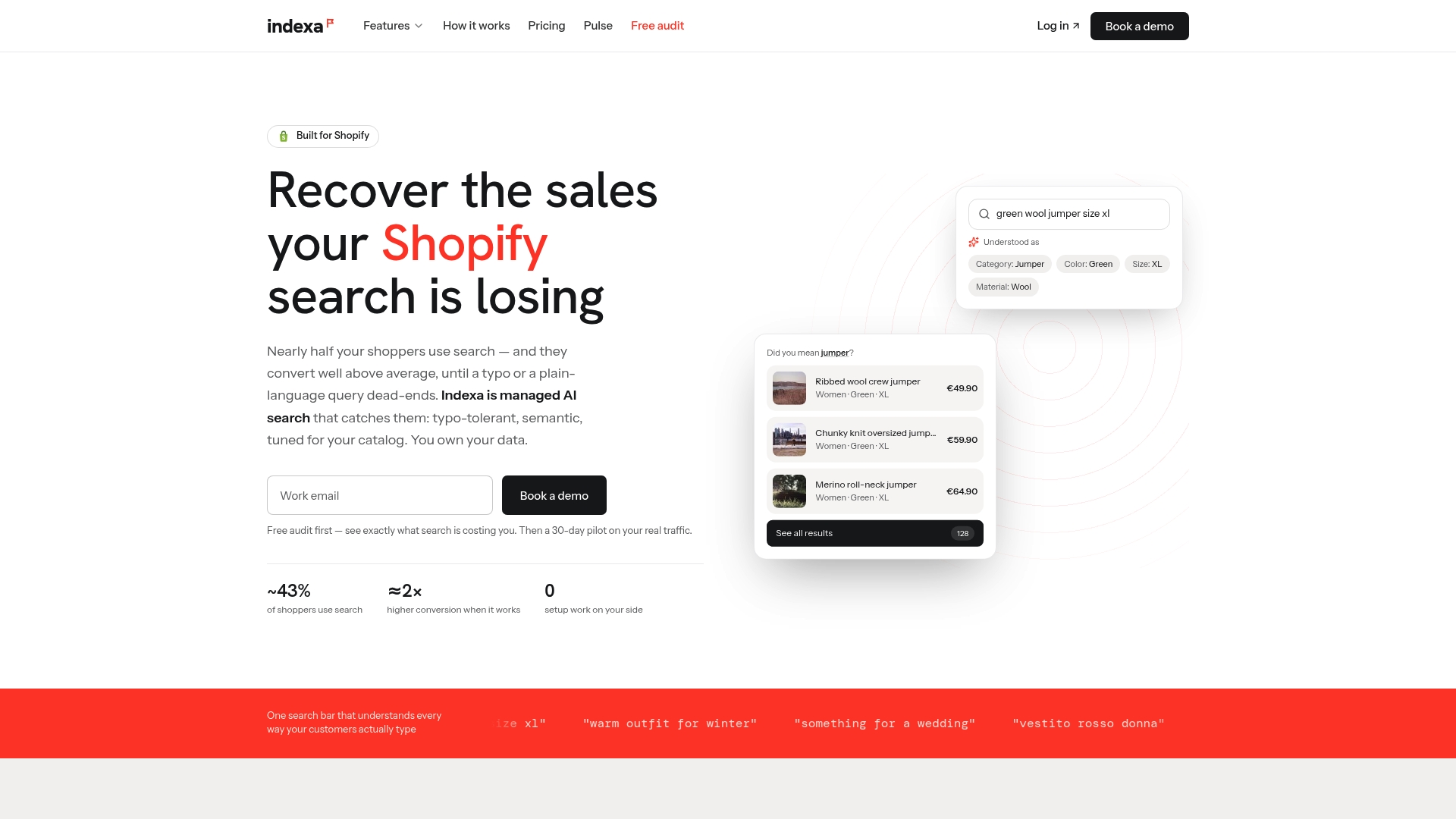
We handle the catalog syncing and merchandising tuning ongoing, which means the monitoring and re-auditing this guide recommends happens continuously rather than depending on someone remembering to rerun a checklist each quarter.
- Start with a free audit to see where your current search setup is losing shoppers.
- Evaluate the fit with a 30-day pilot before committing to anything long-term.
- Billing runs as a flat monthly retainer plus a one-time setup fee, detailed on our pricing page.
If you’d rather see the full feature set first, our features overview walks through the typo tolerance, semantic search, and merchandising tools side by side. Get started whenever you’re ready to hand this off.
FAQ
What causes synonym collisions on a Shopify store?
Synonym collisions usually come from inconsistent product naming across titles, tags, and option values, often introduced during a platform migration or bulk import. Shopify’s automatic synonym matching covers general vocabulary, but store-specific or legacy terms need to be added directly to product fields or assigned as search terms, per Shopify’s Search & Discovery documentation.
Why does predictive search show different results than the main search page?
Predictive search runs on a separate engine from the storefront results page and caps combined results at 10 across products, collections, pages, and suggestions, according to Shopify’s predictive search reference. A fix applied to the results page does not automatically carry over to the dropdown, so both need independent testing.
How do I find phantom or unbuyable variant combinations?
Use the admin’s variant search and filter tools to surface inconsistent or incomplete option combinations, then cross-check against your theme’s selector logic. Themes that iterate the full variants array instead of using options_with_values are more prone to presenting combinations that were never actually stocked.
Should I use Shopify’s built-in synonym tools or add manual synonym rules?
Rely on Shopify’s automatic synonym generation and typo tolerance for general vocabulary, and reserve manual intervention for store-specific terms, handled through assigned search terms and targeted boosts rather than broad synonym rules, as described in Shopify’s changelog. Broad rules risk affecting unrelated products that happen to share the same keyword.
When does a managed search service make sense instead of fixing this manually?
Manual fixes work well for smaller catalogs with limited store-specific vocabulary. Stores with high variant counts, frequent imports, or multiple locales tend to need ongoing tuning and monitoring that a managed audit or pilot engagement can cover more consistently than periodic manual cleanup.
Sources
These are the primary references behind the fixes above: the Search & Discovery changelog, predictive search API docs, and high-variant product guidance. For a hands-on audit, see our Shopify search checklist.
- Search settings are now available in the Shopify Search & Discovery app — Shopify changelog
- Predictive search — Shopify developer docs
- Modifying search with Shopify Search & Discovery — Shopify Help Center
Recommended
Make discovery work harder.
See what your Shopify search could do better with a free, hands-on audit.
Get your free search audit