Fix Shopify SKU Search Without Code or With Developer Steps
Fix Shopify SKU search: no code app fixes for merchants, theme or Admin GraphQL steps for developers, a short troubleshooting checklist, and a fast...

Fix Shopify SKU Search Without Code or With Developer Steps
Yes, Shopify can search by SKU, but the storefront predictive search box excludes variant SKUs by default. Admin and POS already search SKUs out of the box. To fix the storefront, merchants can install a search app, developers can add variants.sku to the predictive search fields, or you can run server-side lookups through the Admin GraphQL API.
TL;DR:
- Shopify’s storefront predictive search excludes variant SKUs by default, requiring apps or code modifications to include SKU in search results for improved accuracy.
- Most SKU search issues originate from catalog formatting or theme settings, not Shopify’s search engine, making bulk cleanup and proper formatting critical for reliability.
- Adding
variants.skuto the predictive search URL or using a search app effectively solves SKU search gaps for small to medium catalogs without major coding.- For larger catalogs or internal tools, querying the admin GraphQL API with specific SKU filters offers faster, more precise results than theme edits.
- Implementing a managed search layer like Indexa provides ongoing relevance tuning, typo tolerance, and reduces maintenance for stores with frequent SKU searches.
Table of Contents
- Quick Merchant-Friendly Options for Shopify SKU Search
- Why Predictive Search Drops Variant SKUs by Default
- GraphQL Queries for Searching Products by SKU
- SKU Formatting Rules That Keep Search Working
- Troubleshooting Checklist When SKU Search Fails
- Why Fixing SKU Search Often Pays for Itself
- A Managed Alternative When SKU Fixes Need to Ship Fast
- Shopify Docs and Community Threads Referenced
- Sources
- FAQ
Quick Merchant-Friendly Options for Shopify SKU Search
Before writing a single line of code, figure out where the SKU search actually breaks. That decides whether you need an app, a small setting change, or a developer.
Shopify’s admin search and the POS app already handle SKU search well. Staff can type a partial or out-of-order SKU string and Shopify’s POS search will still surface the right product, which makes back-of-house lookups mostly a non-issue. The productVariants query in the Admin GraphQL API confirms this is a supported, structured search path, not a workaround.
The gap is on the storefront. The predictive search drawer, which is the little dropdown that appears as a shopper types, was built to match product titles, product types, vendors, and variant titles. SKU isn’t in that list unless someone adds it.
Here’s how to work through the fix in order:
- Test in admin/POS first. If SKU search fails there too, something is wrong with the SKU data itself, not the search logic.
- Try a search app before touching code. Shopify’s Search & Discovery app and several third-party search apps let you add SKU as a searchable field through settings, no theme editing required.
- Measure search-to-conversion impact after any change. A SKU search fix that nobody uses isn’t worth maintaining.
- Call a developer when you’re dealing with a large catalog, need custom ranking (exact SKU match before partial matches), or the predictive drawer needs logic an app can’t configure.
For a single-location store with a few hundred SKUs, the app route usually solves the problem in an afternoon. For a catalog running into the thousands, with resellers or B2B buyers who search by part number, you’ll likely end up touching the theme code or the API regardless.
Why Predictive Search Drops Variant SKUs by Default
Shopify’s predictive search drawer defaults to a fixed set of fields: title, product type, vendor, and variant title. SKU isn’t part of that list, so a shopper typing an exact SKU into the search bar often gets zero results even though the product exists in the catalog. That’s a Shopify design choice, not a bug, and it’s fixable with one parameter change.
Developers can add variants.sku to the predictive search query by modifying the resources[options][fields] parameter in the theme’s predictive search JavaScript. Community code examples for customizing predictive search to include SKU and barcode fields show this is typically a one-line addition to the URL construction, not a rebuild.
- Locate where your theme builds the predictive search URL, usually near the
sectionRenderer.getSectionHTMLcall. - Add
variants.skuto the existingresources[options][fields]list alongside title and variant title. - Reload the storefront, search a known SKU in the live drawer, and confirm the product returns.
- Check the dropdown for noise. SKUs mixed into product titles can clutter results if your catalog reuses numeric ranges across product lines.
Pro Tip: Test with a SKU that has no overlapping digits in your title fields first. If a four-digit SKU also happens to match a price or a size number in another product’s title, you’ll get false positives that make the feature look broken when it’s actually working exactly as configured.
The tradeoff is subtle; for stores balancing search performance across large inventories, Shopify SEO Automation can help optimize SKU inclusion without sacrificing relevance. Adding SKU to predictive search widens the dropdown’s net, which can surface more noise for stores with generic SKUs, versus the cleaner but narrower alternative of appending SKU text directly to variant titles, which shows up in on-site search but can also leak into your storefront’s visible metadata and SEO.
GraphQL Queries for Searching Products by SKU
For developers building an admin tool, a store locator, or a fulfillment dashboard, storefront predictive search isn’t the right layer at all. The Admin GraphQL API’s productVariants query handles this directly:
- Query pattern:
productVariants(first: 20, query: "sku:ABC-*")returns every variant whose SKU starts withABC. - The search syntax documentation confirms field-scoped queries, wildcard prefixes, and boolean operators are all supported, though large catalogs need pagination and prefix queries to avoid slow full scans.
- For numeric-heavy SKUs, combine an exact match attempt with a prefix fallback (
sku:ABC-100*) to prioritize the precise hit before showing broader results. - Return
id,title,sku, andselectedOptionsin the response so the front end can display or redirect without a second round-trip query.
Server-side lookups make more sense than theme edits once you’re past a few thousand SKUs or building an internal tool for staff rather than shoppers.
SKU Formatting Rules That Keep Search Working
Search only works as well as the SKUs behind it. Shopify’s own guidance on managing inventory with SKUs recommends unique SKUs per variant and warns against special characters or spaces, both of which interfere with how Shopify tokenizes search terms.
- Use dashes or dots as separators (
ABC-123orABC.123), not underscores. Shopify’s tokenizer splits on hyphens and dots reliably but can ignore underscores, soABC_123may not match a search for123. - Keep every SKU unique across the entire catalog, not just within a single product’s variants.
- Standardize separators store-wide. Mixing
ABC-123andABC.456andABC 789across collections guarantees inconsistent search behavior. - Clean up SKUs in bulk: export your product CSV, fix formatting in a spreadsheet, and reimport rather than editing hundreds of variants by hand.
Pro Tip: Run the cleanup during a low-traffic window and re-index your search app afterward. A bulk SKU reimport that isn’t re-indexed will leave your search app quietly serving stale data for days.
Clean SKUs pay off well past search. Consistent formatting speeds up fulfillment, tightens reporting accuracy, and cuts down on the returns confusion that comes from two warehouse staff reading the same SKU differently.

Troubleshooting Checklist When SKU Search Fails
Work through these steps in order before assuming the search engine itself is broken.
- Confirm the SKU exists and is unique in Shopify admin, then test the same search in POS.
- Reproduce the failure in the predictive drawer versus the full search results page. They often behave differently.
- Check the theme JS for the
predictive_search_urlconstruction and confirmresources[options][fields]includesvariants.sku. - Test both dash and underscore formats. If underscores are the problem, that’s your formatting fix, not a code bug.
- If large-catalog queries time out, switch to prefix queries or move the lookup server-side through Admin GraphQL.
Pro Tip: Keep a running list of the exact search terms that failed during testing. When you hand this off to a developer, “SKU-4521 returns nothing in the drawer but works in admin” is a five-minute fix; “search is broken” is a much longer conversation.
Why Fixing SKU Search Often Pays for Itself
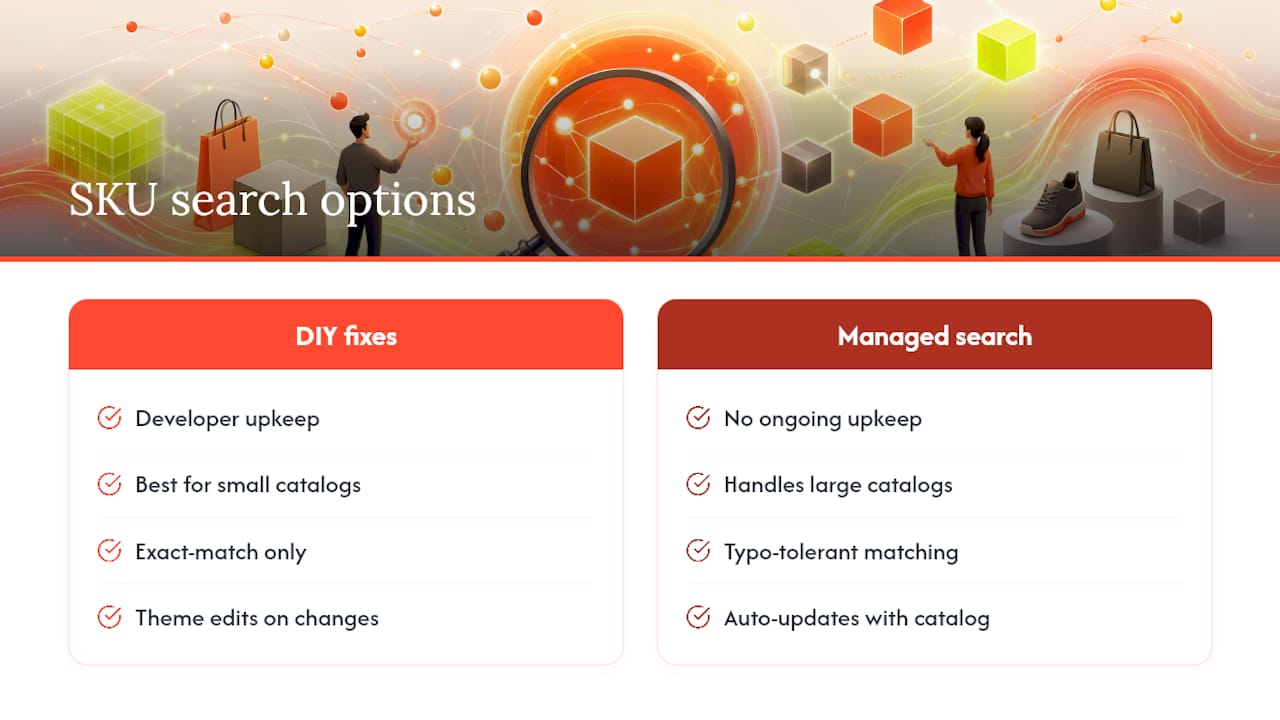
Every shopper who types a SKU into your search bar already knows what they want to buy. When the drawer returns nothing, that’s not a browsing failure. It’s a lost sale from someone who was ready to convert.
DIY fixes make sense for smaller catalogs with the developer time to maintain them. Once SKU volume, catalog size, or query variety grows, a managed, typo-tolerant search layer like Indexa removes the ongoing maintenance burden entirely, matching SKUs, natural language, and misspellings without theme edits every time your catalog changes.
— Barikreativa
A Managed Alternative When SKU Fixes Need to Ship Fast
Theme edits and GraphQL lookups work, but they take developer time you may not have this quarter. A fully managed search layer can enable SKU matching, typo tolerance, and natural-language queries immediately upon activation, with no code required from your team.
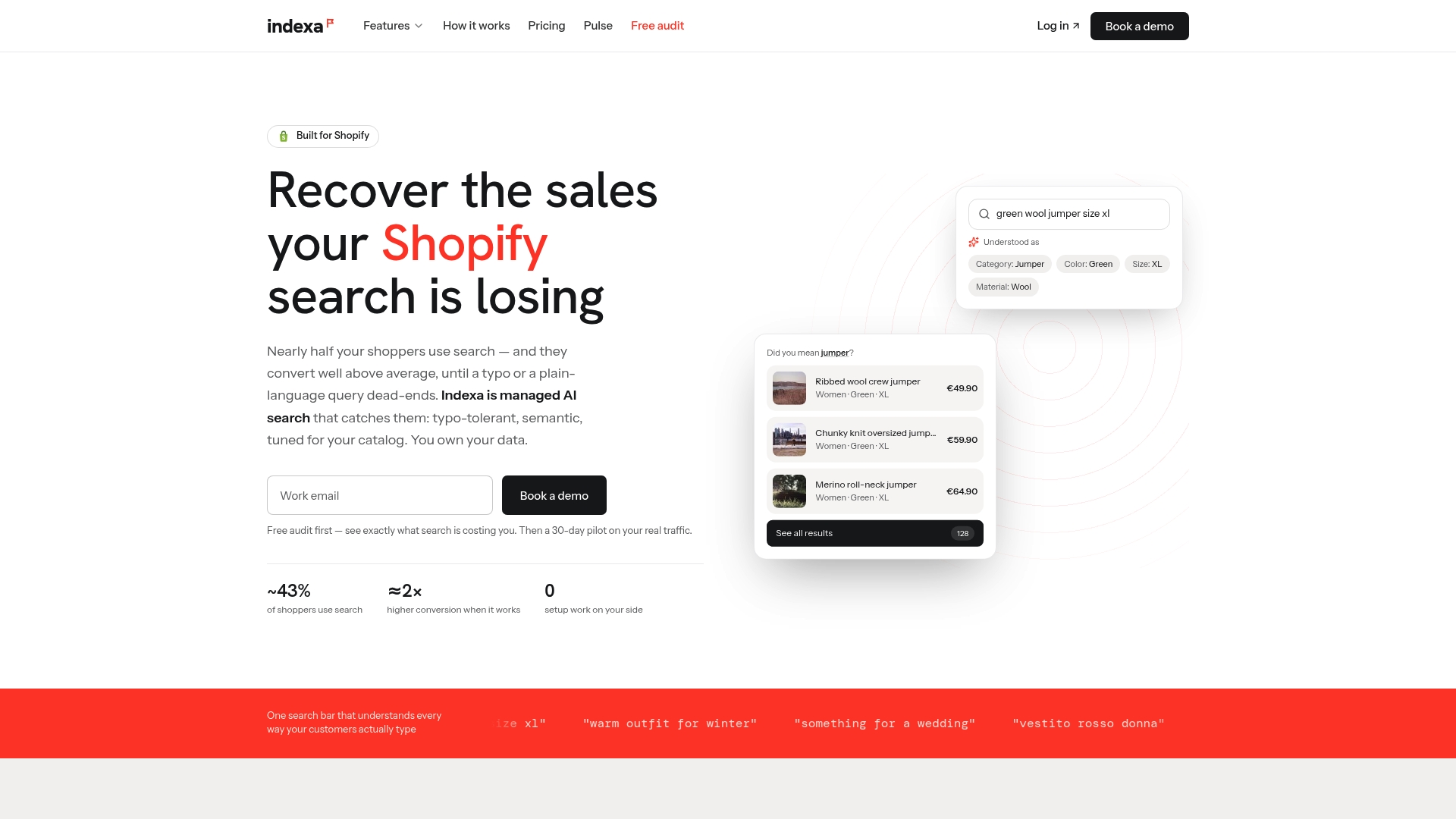
The service is built around catalogs where SKU lookups happen constantly: large product ranges, B2B buyers searching by part number, and stores whose team doesn’t have spare developer hours for theme work. Instead of chasing down resources[options][fields] parameters or babysitting a bulk SKU reimport, Indexa handles relevance tuning on an ongoing basis using real search data from your store. If your merchandising also needs work beyond search boxes, Indexa’s merchandising tools and product recommendations run on the same underlying engine.
If you’re not sure whether your storefront’s SKU search problem is a quick theme fix or something bigger, start with a free Shopify search audit. It’ll tell you exactly where searches are failing and whether a managed fix makes sense for your catalog size.
Shopify Docs and Community Threads Referenced
- Searching for products in Shopify POS
- Using SKUs to manage your inventory
- productVariants — Admin GraphQL
- Search query syntax
- Community thread: predictive search using SKU and UPC/Barcode
Sources
- productVariants — Admin GraphQL — Shopify Developer
- Search query syntax — Shopify Developer
- Using SKUs to manage your inventory — Shopify Help Center
FAQ
How can I find the SKU on a product?
In Shopify admin, open the product, click the variant, and the SKU field appears under pricing and inventory. In POS, the SKU shows on the variant detail screen when you tap into a product.
How do I get a product’s SKU in Shopify?
Go to Products, select the item, and check the SKU field on each variant. If you need SKUs in bulk, export your product CSV, which includes a dedicated SKU column for every variant.
What are SKUs in Shopify?
A SKU, or stock keeping unit, is the unique code you assign to a variant to track inventory, fulfillment, and reporting. Shopify treats it as a distinct field from the product title, which is exactly why storefront search doesn’t include it automatically.
Does Shopify allow duplicate SKUs?
Shopify technically allows duplicate SKUs across variants, but it strongly recommends against it because duplicates undermine inventory tracking and search reliability. Unique SKUs per variant are essential if you want accurate reporting and reliable SKU-based search.
Recommended
Make discovery work harder.
See what your Shopify search could do better with a free, hands-on audit.
Get your free search audit