Shopify Storefront Search Integration: Native, App or Custom
How to integrate search into a Shopify storefront: what native search does, when to add an app or build custom, how to configure it and how to measure results.

Shopify Storefront Search Integration: Native, App or Custom
There are three ways to integrate search into a Shopify storefront. You can configure Shopify’s built-in search, install a search app that plugs into your theme, or build a custom search on the Storefront API (usually for Hydrogen or other headless builds). Most stores should start native, move to a managed or app-based layer when the search-terms data shows a real ceiling, and go custom only when the front end itself is custom. This guide shows how to decide, how to set each one up, and how to test that shoppers actually find products.
TL;DR
- Start with Shopify’s free Search & Discovery app: filters, synonyms, boosts and recommendations cover a lot of stores.
- Move to an app or managed service when zero-result queries, typos and natural-language searches keep losing sales after your synonyms are clean.
- Build custom storefront search only if you run a headless front end such as Hydrogen, and plan for load testing.
- Measure search usage, zero-results rate, search-to-cart rate and revenue per search session, not just search counts.
- Check the usual integration traps first: result limits, language fallback, synonym collisions and theme conflicts.
Table of Contents
- What Shopify’s built-in search gives you
- Native, app or custom: how to choose
- How to configure native storefront search
- Integrating search through the Storefront API
- Typos, synonyms and natural-language queries
- Common integration problems to check
- How to test and measure your search
- Our perspective: search is a merchandising job, not a plugin
- Add managed search without a rebuild
- FAQ
- Sources
What Shopify’s built-in search gives you
Every Shopify store ships with a storefront search box and predictive search that shows suggestions as shoppers type. On top of that, Shopify’s own free Search & Discovery app lets you customize onsite search, filters, synonyms, product boosts and product recommendations from inside the admin. One independent write-up argues that this first-party toolset covers what most stores need, including faceted filters built from variants and metafields, synonyms, search-term boosting and a report on what people actually search for.
That makes native the right first move for almost every store. It costs nothing, it needs no theme surgery, and the data you collect while using it tells you whether you need anything more.
What native search does not do on its own is interpret messy intent. A shopper who types a misspelled brand, a color-plus-occasion phrase or a word your catalog never uses is relying on whatever matching the platform provides, plus the synonym groups you maintain by hand. For a deeper look at the predictive layer, see our guide to Shopify predictive search setup and limits.

Native, app or custom: how to choose
The decision comes down to three things: how clean your catalog data is, how much of your search traffic fails, and what your front end is built on.
| Situation | Best fit | Why |
|---|---|---|
| New store, or a theme-based store with a tidy catalog | Native search with Search & Discovery | Free, first-party, and enough to learn what shoppers search for |
| Zero-result queries, typos and natural-language searches keep appearing in your reports | Search app or managed search service | Adds matching logic that hand-built synonym lists cannot keep up with |
| Fashion or specialty catalog with seasonal churn and a small team | Managed search service | Someone else tunes relevance as the catalog changes |
| Headless build on Hydrogen or another custom front end | Custom storefront search, or a service with native storefront integration | You control the UI, so the search layer must connect through APIs |
A sensible rule from the same independent guide: start with native tools, clean your data, watch the search-terms report for a few weeks, and graduate to a paid option only when you hit a real ceiling instead of a hypothetical one. We agree with the sequence, because it gives you evidence to judge any vendor against.
If you are weighing up costs across tools, our Shopify search app cost calculator lets you compare the options with your own numbers. And since search is only one half of discovery, with the other half being how shoppers reach your store in the first place, it is worth looking at Shopify SEO automation alongside whichever search route you pick.
How to configure native storefront search
Setting up Search & Discovery is mostly a data exercise. A walkthrough of the app describes the flow: you create a filter by choosing its source, such as a product option or a product metafield, then set its label and behavior and add values and ordering. The same app handles synonym groups and product boosts.
1. Fix the data before the settings
Filters are only as good as the attributes behind them. Before building anything, check that every product has consistent values for color, size, material, fit and category. Mixed spellings (“charcoal”, “Charcoal Grey”, “dark gray”) produce fragmented filters and search misses.
2. Build filters from variants and metafields
Use product options for what shoppers choose at purchase (size, color) and metafields for descriptive attributes (fabric, occasion, neckline). Put the filters shoppers use most at the top, and limit the list so mobile users are not scrolling through twenty facets.
3. Add synonym groups
Map the words shoppers use to the words you use: “sneakers” and “trainers,” “hoodie” and “sweatshirt.” Start from your real search-terms report rather than guessing. Our guide to setting up and mapping synonyms walks through the process, and the test in fixing synonym collisions helps you catch groups that pull in the wrong products.
4. Boost what should rank first
Boosts let you push bestsellers, in-stock items or higher-margin lines up for specific terms. Review them monthly so a boost for last season does not outlive the season.
5. Turn on recommendations
Search pages that end in nothing are dead ends. Product recommendations give shoppers a next step when a query returns few results.
Integrating search through the Storefront API
If your front end is headless, you do not configure a search box, you call it. The Storefront API exposes predictive search as a GraphQL query. One integration guide notes that you must request the subfields you need, such as products, collections, pages, articles and queries, or the call returns an error.
A practical build order for a custom integration:
- Decide which result types the search box should show: products only, or products plus collections, pages and suggested queries.
- Call predictive search as the shopper types, with debouncing so you do not fire a request on every keystroke.
- Send the full search to the search query for the results page, and add filters and sorting there.
- Handle empty states with suggestions, popular products or recommendations instead of a blank page.
- Track every query and click so you can see where it fails.
Custom search gives you complete control of the interface, but it also means you own relevance, typo handling, synonyms and performance. A load-testing guide points out that headless builds should include search queries and predictive search endpoints in performance tests, because they can become bottlenecks during promotions and traffic spikes. Plan for that before a sale, not during one.
Typos, synonyms and natural-language queries
Shoppers do not search the way catalogs are written. They misspell, abbreviate, use slang, and type whole sentences such as “black dress for a wedding guest.” Three capabilities handle this:
- Typo tolerance matches “sweter” to sweaters. See how we think about spell correction and what it recovers and fuzzy matching before you add an app.
- Synonym mapping connects shopper vocabulary to catalog vocabulary, including across languages. When it breaks, results can revert unexpectedly, which we cover in multilingual synonym failures and language fallback.
- Semantic search interprets meaning instead of exact words, so a descriptive query still lands on relevant products. Our write-up on fixing the top 20 search failures with semantic search shows what that looks like in practice, and stop words explains why filler words can distort results.
Common integration problems to check
Before blaming the search engine, run through these:
- Result limits. Predictive search shows only a handful of results, and the search page can feel capped for large catalogs. Our piece on beating the 10-result limit covers UX fixes that do not require a rebuild.
- Synonym collisions. Two groups that overlap can send “jacket” shoppers to “coat” pages, or the reverse, with no warning.
- Language fallback. On multilingual stores, queries can fall back to the default language and return thin results.
- Dirty attributes. Inconsistent metafields break filters and search matching alike.
- Theme conflicts. Custom themes and apps that override the search template can disable features you configured in the admin.
- Sync delays. New products, price changes and stock updates should reach the search index quickly. Check after every large import.
You can run a quick diagnostic with the free Shopify search test, or work through the Shopify search audit checklist.
How to test and measure your search
Define success before you ship a search change. A 2026 guide recommends tracking four numbers: search usage rate, zero-results rate, search-to-cart rate and revenue per search session. The same source gives rough benchmarks: usage of 15 to 30 percent of sessions, a zero-results rate under five percent of queries, and search-to-cart of 12 to 18 percent. Treat those as reference points, not guarantees, since your catalog and audience differ.

A wider metric set from another analytics guide adds refinement rate, search-to-product-page rate and search-led conversion rate. Together they show whether shoppers find something, click it, and buy it.
A 45-minute monthly routine
- Pull the four core metrics for the month.
- List the top zero-result queries and decide which need synonyms, new products or redirects.
- Review boosts and merchandising rules against last month’s sales.
- Re-run your 20 most important queries and check the first ten results by eye.
For what to track and how to act on it, see our search analytics guide, and for a structured way to judge relevance, testing search relevance with Precision@10.
Our perspective: search is a merchandising job, not a plugin
We see the same pattern on Shopify stores again and again. Search gets installed once, nobody owns it, and the catalog keeps changing underneath it. New seasons arrive, shoppers invent new words, and the zero-results list quietly grows.
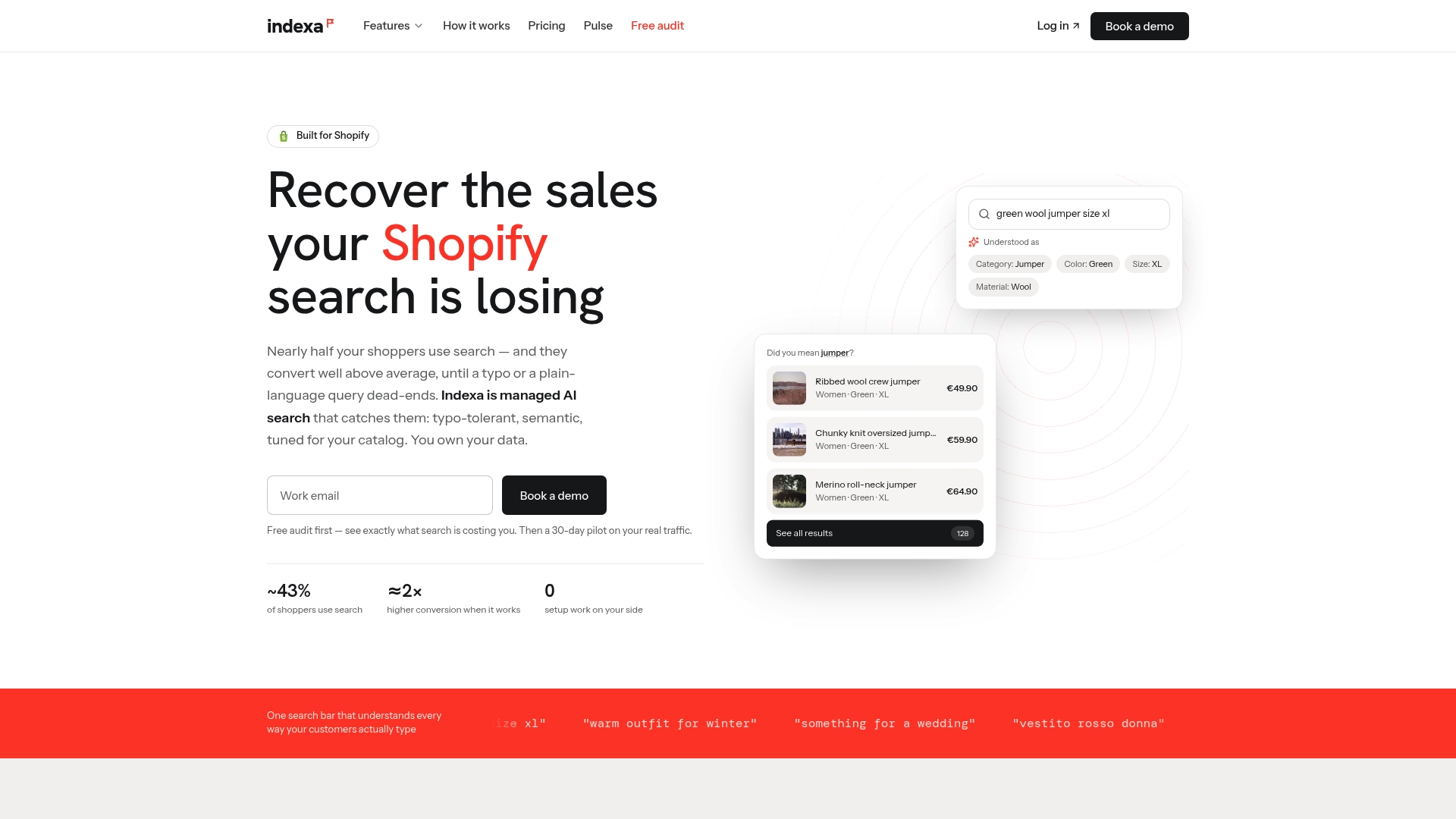
That is why we built Indexa as a fully managed service. Typo-tolerant and semantic search handle the messy queries, synonym mapping and multilingual support close vocabulary gaps, and a visual merchandising grid editor lets a merchant shape search and category pages without code. Relevance is tuned continuously from your own store data, and you keep ownership of that data.
Native Shopify tools are a good foundation, and we encourage merchants to use them and learn from them. When the search-terms report shows shoppers still leaving after a failed query, a managed layer takes over the tuning work so your team can get back to the catalog and the brand.
Barikreativa
Add managed search without a rebuild
If your reports show typos, natural-language queries and zero-result searches costing you sales, Indexa is a fully managed AI search and discovery service built for Shopify. It integrates natively with the storefront, including Shopify Hydrogen, needs no setup or coding on your side, and includes migration support if you are moving from another search platform. We also offer a free audit and a 30-day pilot.
Start with the free audit, read how the pilot works, or see how we compare with Shopify’s own Search & Discovery. Pricing details are on our pricing page, and the full feature list covers query understanding and recommendations.
FAQ
Does Shopify have built-in storefront search?
Yes. Every store includes a search box with predictive suggestions, and the free Search & Discovery app adds filters, synonyms, product boosts and recommendations. It is the right starting point for most stores, and the search-terms report it provides shows you where to improve next.
When should I move from native search to an app or managed service?
Move when your data shows a real, repeated problem: a high zero-results rate, many misspelled or natural-language queries that fail, or manual synonym upkeep that your team cannot sustain. Clean your catalog data first so you know the fix is about search and not attributes.
Do I need a developer to integrate search on Shopify?
Not for theme-based stores. Native configuration happens in the admin, and a managed service like ours is activated without setup on your side. You need a developer mainly for custom headless builds that call the Storefront API directly.
How do I know my search integration is working?
Track search usage rate, zero-results rate, search-to-cart rate and revenue per search session each month. If zero-results queries fall and revenue per search session rises after a change, the integration is helping shoppers find products.
Sources
- Shopify Search & Discovery: How to Improve Onsite Search, Filters & Recommendations (PageFly)
- Shopify Search & Filtering Guide: Native vs Apps (Karan Goyal)
- Shopify Search & Discovery App: How To Set Up Filters (BOGOS)
- Shopify Storefront API: List Predictive Search (One)
- Shopify Load Testing (LoadForge)
- Shopify Site Search Performance Analytics Guide (Ecom Toolkit)
Recommended
Make discovery work harder.
See what your Shopify search could do better with a free, hands-on audit.
Get your free search audit