Shopify Search Analytics: What to Track and How to Act
Learn what Shopify search analytics measures, where to find the reports, how to read no-result and no-click queries, and how to turn them into sales.

Shopify Search Analytics: What to Track and How to Act
Shopify search analytics is the set of reports that show what shoppers type into your store’s search box and what happens next: which queries get clicks, which lead to purchases, which return nothing, and which return results nobody wants. You find them in the Shopify Search & Discovery app, and the useful work is reading the failures (no results, no clicks) and fixing the catalog data, synonyms and ranking behind them.
This guide covers what the reports measure, where they live, how to interpret each pattern, what the native data cannot tell you, and a simple routine for testing whether your changes actually helped.
TL;DR
- Shopify’s search reports cover click rate, purchase rate, searches by query, searches with no results and searches with no clicks, on the online-store search-results page.
- The last 30 days appear in the Search & Discovery app; for other date ranges, use Analytics > Reports.
- “No results” queries usually point to vocabulary gaps, typos or missing products. “No clicks” queries point to weak relevance or ranking.
- Native search figures will not match Google Analytics exactly, so compare trends inside one tool rather than numbers across tools.
- Change one thing at a time, keep a stable comparison window, and write down any definition changes.
Table of Contents
- What Shopify search analytics actually measures
- Where to find your search reports
- Reading the four patterns that matter
- A weekly routine for turning queries into fixes
- Fixing the underlying data, not just the symptoms
- Limits of native Shopify search analytics
- Testing whether a search change worked
- Our perspective: search data is the most honest feedback you get
- Get your search failures audited for free
- FAQ
- Sources
What Shopify search analytics actually measures
Shopify’s Search & Discovery reports focus on storefront search performance. The metrics are:
- Click rate: the share of searches where the shopper clicked a result.
- Purchase rate: the share of searches that ended in a purchase.
- Searches by query: the terms shoppers typed, ranked by volume.
- Searches with no results: terms that returned nothing.
- Searches with no clicks: terms that returned results, none of which got a click.
One detail trips up many merchants. Shopify states these reports cover activity on the online-store search-results page, not interactions with predictive search, the dropdown that appears as someone types. If most of your shoppers pick a suggestion from the dropdown, your report will understate how often search is used. Our guide to predictive search setup and its limits explains how that dropdown behaves.
How it differs from general store analytics
General Shopify analytics answers business-level questions: sessions, visitors, orders, revenue, acquisition sources, conversion-rate stages from cart addition to completed checkout. Store-search terms also appear there, reported with a delay of up to 72 hours. Search analytics is narrower and more diagnostic. It does not tell you how many people visited; it tells you whether the ones who tried to find something succeeded.
That is why it is worth its own routine. Someone who types a query has told you exactly what they want. A failed search is the clearest unmet-demand signal your store produces.

Where to find your search reports
You have two places to look:
- The Search & Discovery app. It shows search-performance reports for the last 30 days.
- Analytics > Reports in your Shopify admin. Shopify directs you here when you need other date ranges.
These are the steps Shopify describes in its documentation. No extra tracking code is described as a requirement for the built-in search reports; they read from your storefront’s own search activity.
Because the app window is limited to 30 days, export or screenshot your top queries monthly. A seasonal fashion store, for example, needs to compare this autumn’s coat searches with last autumn’s, and the app alone will not give you that.
Reading the four patterns that matter
Most of the value sits in four patterns. Here is how to interpret each.
Searches with no results
Shopify’s definition is plain: nothing came back. The reasons are not. Work through these causes in order:
- Typos and misspellings. “Cardigen,” “jeggings” typed as “jegings,” “sneekers.” The product exists, the match failed. See how fuzzy matching fixes misses before you add an app.
- Vocabulary gaps. Your catalog says “jumper”; US shoppers type “sweater.” Your catalog says “trousers”; they type “pants.” This is a synonym problem, not a product problem.
- Special characters and formatting. Model codes, sizes like 5.5, or terms with colons can fail unexpectedly. We cover special characters in Shopify search.
- Products you do not carry. Genuine demand for something you do not stock. This is merchandising intelligence, not a bug.
Tag each top no-result query with one of those four causes. The split tells you whether you need a synonym list, a data cleanup or a sourcing conversation.
Searches with results but no clicks
This is the subtler failure. Shopify defines it as a search term that returned results which received no clicks. The shopper saw your results and rejected all of them. Typical causes:
- The top results are technically matching but not what the shopper meant (a search for “black dress” leads with a black dress shirt).
- Titles or images do not reflect the query’s intent.
- The query is descriptive or natural language (“something to wear to a summer wedding”) and keyword matching cannot interpret it. Our piece on semantic versus keyword search shows how to judge that with a sample of 100 to 300 queries.
Run the live query yourself. Open your storefront, type the term, and look at the first row of results as a stranger would. Within a minute you will usually see why nobody clicked.
Low click rate on high-volume queries
A frequent query with a weak click rate deserves attention before a rare query with none. Volume times failure is the cost. A term searched 400 times a month with a low click rate costs more than ten terms searched twice.
Clicks without purchases
Purchase rate tells you whether the clicked product satisfied the shopper. If a query gets clicks but few purchases, look beyond search: the product page, the price, size availability, shipping information. Search sent them to the right place; something there lost them. Keep this separate from relevance work so you do not tune the wrong thing.
A weekly routine for turning queries into fixes
Shopify says its query, no-result and no-click reports help you assess performance and prioritize customization, and that you can boost more relevant products with Search & Discovery. Here is a routine that puts that into practice.
- Pull the top 50 queries by volume and the top 50 no-result queries.
- Classify each failure using the causes above.
- Fix the cheapest causes first. Add synonyms for vocabulary gaps, correct product titles and tags, and set boosts for queries where the right product exists but ranks low.
- Re-test the live query on your storefront on desktop and mobile.
- Log the change with date and query so you can attribute the result later.
- Revisit in two to four weeks against the same metrics.
Worked example: a fashion store
Imagine a store whose no-result list shows “sneekers,” “puffer vest,” “culottes” and “gym shorts.” The classification might read: typo, product exists as “quilted gilet,” product exists as “wide-leg cropped trousers,” product exists as “athletic shorts.” Three of four failures are vocabulary or spelling, so synonyms and typo tolerance fix three at once, and no new product is needed. The example is illustrative, but the pattern is the one fashion retailers meet constantly, because shoppers use trend words and regional terms that merchandisers do not write into titles.

The free Shopify search audit checklist walks through this kind of review step by step.
Fixing the underlying data, not just the symptoms
Synonyms are a patch. Better product data is the cure. If shoppers search for “linen” and your fabric lives only in an image or a free-text description, the search index cannot match it. Move attributes such as material, fit, color and occasion into structured fields like tags and metafields, then use them in filters as well as search.
We go deeper on this in fixing data first and testing in a 30-day pilot. Also be aware of the platform’s 10-result limit in the default search flow, which affects how many options a shopper can scan before giving up.
If your goal is also to bring more qualified visitors into the store in the first place, Shopify SEO automation tools address the acquisition side; search analytics then tells you whether those visitors can find what they came for.
Limits of native Shopify search analytics
The built-in reports are a good starting point, and they are free. They also have boundaries you should know before you draw conclusions:
- Predictive search is excluded. Shopify says the reports cover the search-results page only, so dropdown behavior is invisible.
- The app view is 30 days. Longer comparisons need Analytics > Reports or your own exports.
- Reporting delay. Search terms in general analytics can lag by up to 72 hours, so do not judge a change made this morning.
- Counts are not relevance scores. The reports show what happened, not how good the ranking was. A zero-click query tells you something failed, not which result should have won.
- No offline testing. You cannot compare two ranking approaches side by side from these reports alone. For that, see how to test relevance with precision@10.
Why numbers differ from Google Analytics
Expect Shopify and Google Analytics 4 to disagree. They count sessions and visitors differently, and time zone settings can differ: Shopify reports in your store’s time zone, while GA4 commonly uses UTC. A practical guide to GA4 and Shopify discrepancies calls such gaps normal given the tools’ different purposes. The sensible response is to pick one source for search decisions, stay with it, and compare trends, not absolute totals, across tools.
Testing whether a search change worked
Analytics only helps if you can tell improvement from noise. Shopify’s guidance points to a stable comparison window or an experiment, preserved guardrails and documented definition changes. In practice:
- Compare like with like. Same length of period, same weekdays, and avoid comparing a sale week with a normal week.
- Change one lever at a time. If you add synonyms and rewrite titles together, you will not know which helped.
- Set guardrails. Watch overall conversion, average order value and no-result rate while you tune, so a gain in click rate does not hide a loss elsewhere.
- Write down definitions. If you change what counts as a search (say, you switch on a new search app that changes the results page), mark the date. Otherwise the trend line lies.
- Use a fixed query set. Keep a list of your 50 to 100 most important queries and re-run them after every change.
Our perspective: search data is the most honest feedback you get
We work only on Shopify search, and one pattern repeats across stores: merchants spend heavily to bring a visitor in, then lose them at the search box because “sweater” did not match “jumper” or a typo returned an empty page. The data to spot this is already in your admin. What is usually missing is someone whose job it is to read it every week and act.
That is why we built our service as fully managed. Typo tolerance, semantic matching, synonym mapping and merchandising adjustments only help if they are tuned against real store data, continuously, not set once and forgotten. Our view is that the first month should be about measurement: find the top failing queries, fix the cheap ones, and prove the effect before anyone commits to anything bigger. Native reports are a fine place to start, and a free audit is a fine place to see how big the gap really is.
— Barikreativa
Get your search failures audited for free
If you would rather not do the weekly query review yourself, Indexa offers fully managed AI search and discovery for Shopify, with typo-tolerant and semantic search, synonym mapping, a visual merchandising grid editor and integrated analytics. There is no setup work on your side, and you can start with a free audit to see which of your searches are failing.
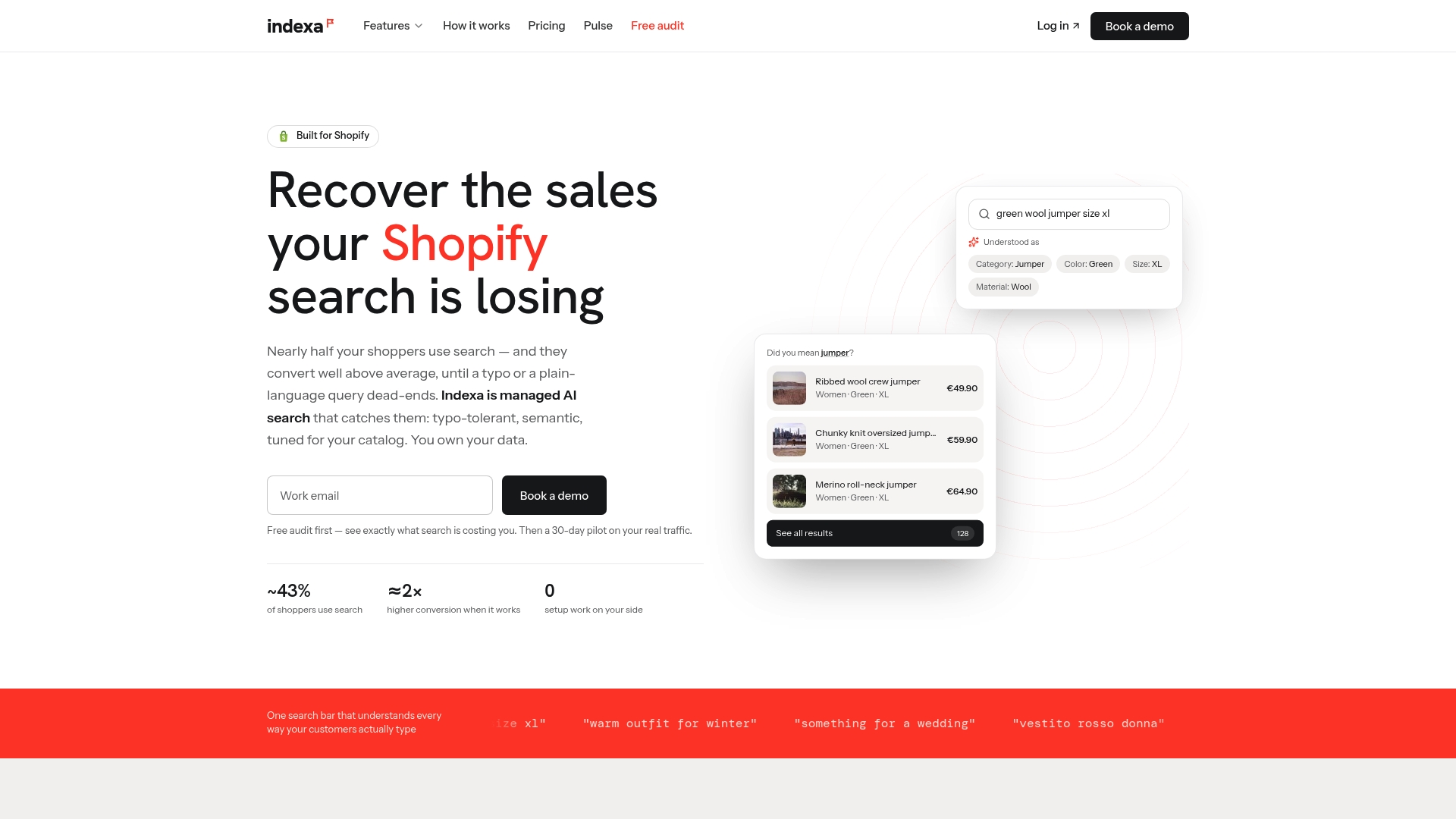
Want to see what a managed approach adds on top of the native app? Read how we compare to Shopify Search & Discovery, or check pilot and fee details on our pricing page. You can also try the free Shopify search test on your own store today.
FAQ
Is Shopify search analytics free?
The Search & Discovery app and its search reports are Shopify’s native tools, and the reports are available inside it. Check the current app listing in your admin for any plan-specific conditions, since Shopify can change them.
Why don’t my search numbers match Google Analytics?
The two tools define sessions and visitors differently and may use different time zones. Shopify aligns with your store’s time zone, while GA4 commonly defaults to UTC. Treat each as its own source and compare trends within one tool.
How often should I review search queries?
Weekly for the top no-result and no-click queries is a practical rhythm, because the Search & Discovery app only shows the last 30 days. Export monthly if you want year-over-year comparisons.
Does the report include predictive search?
No. Shopify says the reports cover activity on the online-store search-results page, not predictive search interactions. A shopper who clicks a dropdown suggestion may not appear in your search click data.
What should I fix first?
Start with high-volume queries that return no results because of typos or vocabulary gaps. They are cheap to fix with synonyms and spelling tolerance and tend to recover sales fastest.
Sources
- Shopify Search & Discovery reports and analytics
- Shopify Analytics: What the Built-In Reports Show
- Shopify Analytics vs GA4 data discrepancies
- GA4 vs Shopify analytics: understanding data discrepancies
- Shopify SEO automation tools
Recommended
Make discovery work harder.
See what your Shopify search could do better with a free, hands-on audit.
Get your free search audit