Fix Out of Stock Search on Shopify With Settings and Flow
Change Search & Discovery settings, add Shopify Flow publish/unpublish automations, and use a checklist to choose apps or a managed search service.

Fix Out of Stock Search on Shopify With Settings and Flow
Set Shopify Search & Discovery’s “Out of stock products” option to HIDE or LAST depending on your restocking cadence, then layer in Shopify Flow to automate unpublishing and republishing as inventory changes. If you don’t have the time or team to keep tuning this manually, a managed search service can handle typo-tolerant, semantic search and ongoing relevance work for you.
TL;DR:
- Use “HIDE” for products that rarely restock to prevent sold-out items from appearing in search results, keeping the storefront clean.
- Implement Shopify Flow automations to unpublish products when inventory hits zero and republish them when stock is replenished, ensuring catalog accuracy.
- Avoid unpublishing high-traffic or SEO-ranked products prematurely, especially if inventory tracking or sync delays could cause unnecessary removal.
- Be aware that theme queries can override app settings for unavailable products, requiring developer intervention to align search behavior.
- Consider a managed search service if managing automations and inventory data becomes too complex or time-consuming for your team.
Table of Contents
- Where to change unavailable-product behavior in Shopify Search & Discovery
- Automations: Shopify Flow templates to hide or republish out-of-stock products
- Filters, predictive search, and platform limits that affect visibility
- Decision guide: when to hide, deprioritize, or show out-of-stock items
- App and solution checklist for evaluating search and inventory tools
- What I’d prioritize first if I were running your store
- Indexa: a managed path if you’d rather not build this yourself
- FAQ
- Sources
Where to change unavailable-product behavior in Shopify Search & Discovery
The setting that controls whether shoppers see sold-out items lives in Apps > Search & Discovery > Settings > Out of stock products in your Shopify admin. From there you pick one of three behaviors for both search results and predictive search, and the choice applies store-wide rather than per collection.
- HIDE: unavailable products disappear entirely from search and predictive search.
- LAST: out-of-stock items still appear but rank behind everything in stock, which is the default behavior.
- SHOW: unavailable products are mixed in with available ones, treated the same as in-stock inventory.
If you change this setting and nothing happens on your storefront, your theme is likely sending its own “type” query parameter with search requests, which overrides the app’s setting. That’s a question for your theme developer, not a bug in Search & Discovery.
Combined listings add another layer: when variants of the same product are split into parent and child listings, you can choose whether search surfaces the parent, the child, or both. A sold-out color variant, for example, can stay invisible in search while the parent listing (with other available colors) remains fully discoverable.
Pro Tip: Check your combined listings settings before adjusting the global out-of-stock rule. A product can look “hidden” simply because its visible variant sold out, not because of your search settings.
Automations: Shopify Flow templates to hide or republish out-of-stock products
Manually unpublishing every sold-out product doesn’t scale past a handful of SKUs. Shopify Flow closes that gap with a trigger built specifically for this: Product variant inventory quantity changed, which fires whenever stock moves on any variant.
A basic workflow looks like this:
- Trigger on Product variant inventory quantity changed.
- Add a condition checking if total inventory across all variants equals zero.
- Run the Unpublish product action to pull it from your Online Store channel.
- Build a mirrored workflow with the same trigger, checking for inventory greater than zero, that runs Publish product to bring it back automatically.
Shopify’s own documentation on hiding out-of-stock products includes ready-made templates for both directions, so you’re rarely building this from scratch.
A few caveats matter here. Check inventory at the product level, not just one variant, or you’ll unpublish a product that still has other sizes or colors in stock. Draft orders can temporarily reserve inventory without actually selling it, which may trigger a false “zero stock” read. And if inventory tracking is turned off for a product, Flow has nothing to watch, so these automations only work on tracked inventory. For stores selling from multiple locations, confirm whether your condition sums stock across all locations or just one.
Pro Tip: Test any publish/unpublish Flow on a small, low-traffic collection first. An automation bug that unpublishes your bestsellers is a worse problem than a few sold-out items showing up in search.
Filters, predictive search, and platform limits that affect visibility
Beyond the global out-of-stock setting, filters determine whether shoppers can actively exclude unavailable items on collection and search pages. Standard filters cover price, availability, and product type, and you can build custom filters from metafields for attributes like material or fit.
- Availability filter: lets shoppers tick “in stock” to remove sold-out products from view themselves.
- Metafield filters: useful for variant-level attributes that standard filters don’t cover.
- Collection size limit: filters disappear entirely on collections with more than 5,000 products.
- Search result limit: filters are also hidden once a search returns more than 100,000 results.
- Value display rule: only filter values that actually apply to the current result set are shown, so an empty “size” filter won’t appear if nothing in the collection has that attribute.
On the developer side, the Storefront API’s unavailableProducts argument accepts SHOW, LAST, or HIDE and controls both the search and predictiveSearch queries for custom storefronts. If you’re on Hydrogen or a headless build, this is the setting equivalent to the admin toggle, and it needs to match your intended behavior independently of the Search & Discovery app.
Decision guide: when to hide, deprioritize, or show out-of-stock items
The right setting depends less on preference and more on how fast you restock and how much your catalog relies on search-driven discovery.
- Choose HIDE if items rarely come back, or if a sold-out product sitting in results frustrates shoppers more than it informs them.
- Choose LAST if you restock frequently and want sold-out items to stay indexed for SEO and quick republishing without ranking above available stock.
- Choose SHOW only for stores where customers routinely browse to pre-order or join waitlists, since it treats sold-out and in-stock items identically.
Unpublishing a product doesn’t erase its sales history or analytics, but it does remove it from active discovery, so weigh that before pulling high-traffic, SEO-ranked pages entirely. Pairing LAST with a back-in-stock notification app gives you a middle path: shoppers still see the item, understand it’s unavailable, and can ask to be notified instead of bouncing.
Pro Tip: Start with LAST while you build and test your Flow automations. It’s the safest default and buys you time to confirm your unpublish/republish logic works before relying on HIDE.
App and solution checklist for evaluating search and inventory tools
Whether you’re comparing apps or a managed service, judge options against the same operational categories rather than feature lists alone.
- Unavailable-products handling: does the tool let you choose hide, deprioritize, or show, and does that apply consistently across search and predictive search?
- Real-time inventory sync: delays between stock changes and search updates create the exact problem you’re trying to fix.
- Variant-level indexing: a tool that only tracks parent products will miss sold-out colors or sizes within an otherwise available listing.
- Semantic and typo-tolerant search: shoppers who misspell a product name or search in natural language shouldn’t hit a dead end.
- Merchandising controls: the ability to manually boost in-stock alternatives when a popular item sells out.
- Back-in-stock workflows: integration or native support for restock notifications.
- Recoverable revenue analytics: reporting that shows what search failures or out-of-stock dead ends are actually costing you.
Red flags worth walking away from include slow or batch-only sync, manual catalog mapping, no predictive-search support, and no variant-level control, since all four tend to resurface the same out-of-stock visibility problems you started with.
What I’d prioritize first if I were running your store

Inventory accuracy comes before any visibility rule. If your stock counts lag reality, no amount of HIDE, LAST, or Flow logic will fix what shoppers see. Once sync is solid, the sequence I’d follow is: set LAST as your baseline, build the two core Flow automations for unpublish and republish, then evaluate whether a managed search layer makes sense.
A managed service tends to pay for itself fastest on stores with heavy search traffic, large or complex variant catalogs, or small teams without a dedicated developer to maintain Flow logic over time. For a five-product catalog, native settings are probably enough. For a few thousand SKUs across multiple variants, the ongoing tuning work adds up fast.
— Barikreativa
Indexa: a managed path if you’d rather not build this yourself
Our managed service takes the search and discovery work off your plate entirely: typo-tolerant and semantic search, variant-level indexing, and ongoing relevance tuning that adjusts to real shopper behavior on your store. There’s no setup required on your end, and most stores can be live quickly.
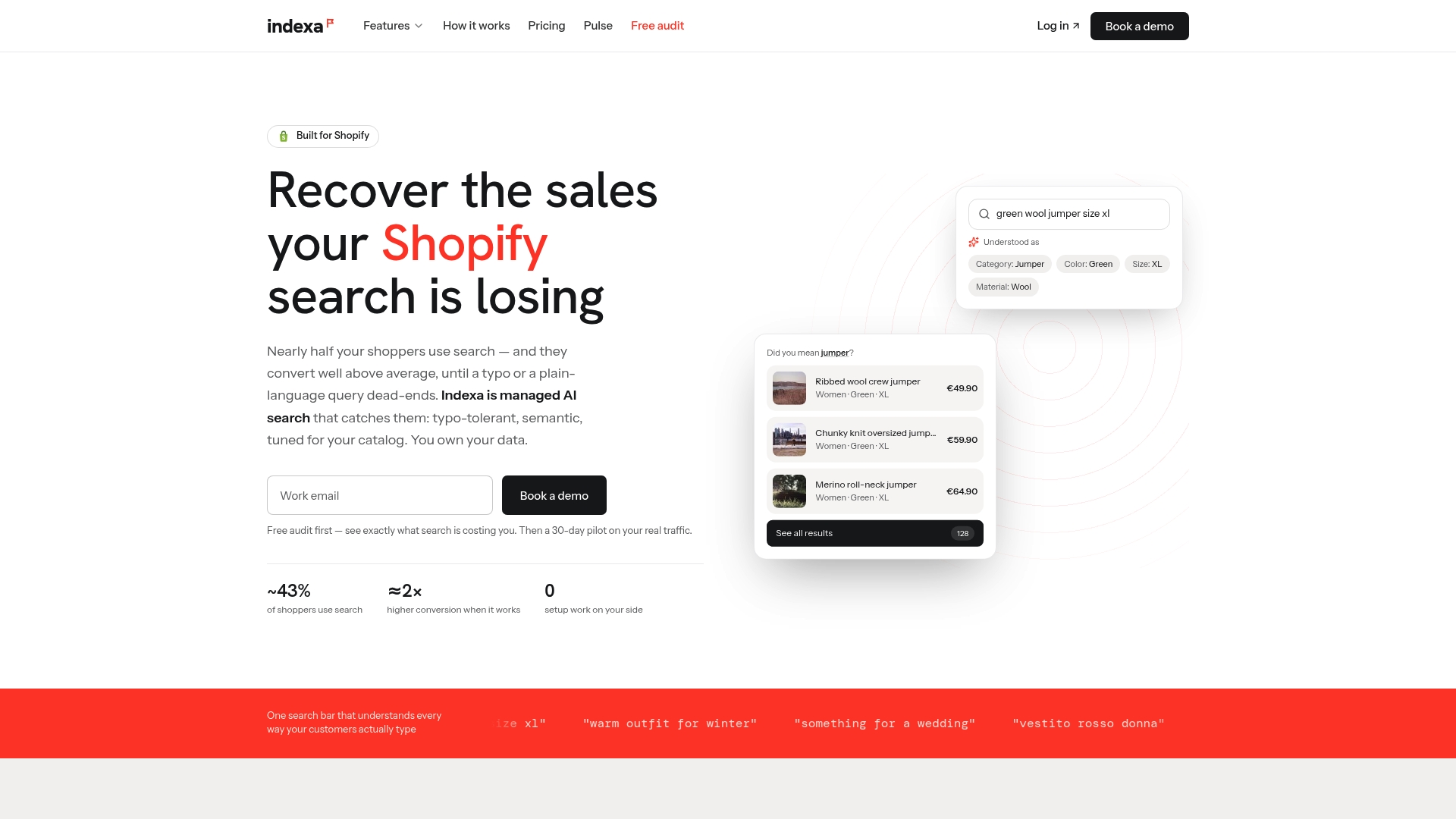
If you want to see how your store’s current search handles out-of-stock items and missed queries before committing to anything, start with our free audit. From there, our 30-day pilot gives you a direct side-by-side look at recoverable revenue, and you can explore the full managed AI search service whenever you’re ready to move.
FAQ
How do I search for products in Shopify?
As a shopper, you use the search bar on a store’s storefront, which returns results based on the merchant’s Search & Discovery settings, including how out-of-stock items are ranked or hidden. As a merchant managing your own catalog, you search and filter products from the Products section of your Shopify admin.
How much does Shopify take from a $20 sale?
Shopify’s fees depend on your specific plan and payment method, and the exact percentage varies by region and plan tier. Check your plan’s transaction fee details directly in your Shopify admin or current pricing page, since rates differ across plans.
Does Kim Kardashian use Shopify?
We don’t have verified, current information confirming which e-commerce platform any specific public figure’s business uses. For accuracy, check the brand’s own storefront or official statements rather than relying on unconfirmed claims.
What are the top-selling product categories on Shopify?
Shopify doesn’t publish a definitive, universal ranking of top-selling products, since bestsellers vary widely by store, season, and region. Instead of chasing a general list, track your own store’s bestseller report in the Shopify admin to see what’s actually moving.
Why would I hide out-of-stock products instead of just showing them?
Hiding sold-out items keeps search results focused on what shoppers can actually buy right now, which tends to reduce frustration and bounce. The tradeoff is that hidden products can lose SEO value and search ranking history, so many stores use LAST instead of HIDE to balance visibility with relevance.
Sources
- Modifying search with Shopify Search & Discovery
- SearchUnavailableProductsType — Shopify Storefront API (2026-07)
Recommended
Make discovery work harder.
See what your Shopify search could do better with a free, hands-on audit.
Get your free search audit