How to Import Synonyms in Shopify: What Works Today
Can you bulk import synonyms into Shopify search? Learn what the Search & Discovery app supports, its limits, and a practical workflow for loading synonym lists.

How to Import Synonyms in Shopify: What Works Today
Shopify’s Search & Discovery app lets you create synonym groups, but as far as Shopify’s documentation and merchant discussions show, it has no CSV or file import for them. You build groups one at a time inside the app, within fixed limits. The practical way to “import” a large synonym list is to prepare it in a spreadsheet, trim it to what Shopify accepts, enter it in batches, and test it against real searches. This guide walks through that workflow.
TL;DR
- Shopify’s synonym groups are created in the Search & Discovery app. Each synonym can be up to 5 words, a group holds up to 20, and a store holds up to 1,000.
- A merchant feature request for CSV upload shows no announced bulk import and no in-app workaround.
- Plan your list in a spreadsheet first. Drop misspellings, loose pairs and duplicates before you type anything into Shopify.
- Product titles, tags and descriptions often do the work of a synonym, and cost you no group slots.
- If your catalog is large or multilingual, a managed search service can handle synonym mapping for you.
Table of Contents
- Can you bulk import synonyms into Shopify?
- What a synonym group does in Shopify search
- The limits to plan around
- A workflow for “importing” a large synonym list
- Alternatives that don’t use synonym slots
- Special cases: multilingual, brands and generated lists
- Keeping the list healthy
- Our perspective on synonym management
- Hand the synonym work to a managed team
- FAQ
- Sources
Can you bulk import synonyms into Shopify?
Not through a documented file upload. Shopify’s help page on modifying search describes one way to add synonyms: open the Search & Discovery app, go to Search, choose Synonyms and create a group by hand. No CSV template, import button or public bulk endpoint for synonym groups appears in that documentation.
Merchants have noticed. A Shopify Community thread asks for CSV upload for synonyms. Its summary records no feature decision and no workaround inside the app, and it points people to Shopify Support for formal feedback. The same discussion reflects a view common among merchants: first-party Shopify apps cover the basics, and heavier workflow needs may call for another tool.
Things also change. In September 2026 a merchant on the Shopify developer forums reported that the synonyms option had disappeared from their Search & Discovery app, with no official explanation at the time of posting. If your own menu looks different from the steps below, check the app’s current state and contact Shopify Support.
So the honest answer to “import synonyms Shopify” is this: you can’t upload a file, but you can make manual entry quick and accurate. The next sections show how.

What a synonym group does in Shopify search
Shopify’s documentation says synonyms are groups of terms the search treats as exact matches for each other. Group “slings” with “belt bags” and a shopper typing either one sees the bags they were after.
Two behaviors shape how you build groups:
- Multi-word synonyms are phrase matches. A synonym such as “belt bag” is searched as a phrase, so the words must appear in that exact order in the product data.
- Titles are labels only. The group title is for display and doesn’t change search results.
Shopify also does some of the work for you. Its Storefront API documentation says search automatically generates synonyms and related terms for a query, so you don’t need lists for general vocabulary. Your manual groups are best spent on what automation can’t know: your brand language, your internal naming and the regional words your customers use.
The limits to plan around
Before you build a list, shape it to fit Shopify’s stated limits:
| Limit | Value |
|---|---|
| Words per synonym | Up to 5 |
| Synonyms per group | Up to 20 |
| Synonyms store-wide | 1,000 |
| Duplicates across groups | Not allowed; each synonym must be unique in the store |
The uniqueness rule matters most for imports from other systems. Lists exported from a previous search tool often repeat the same term in several rows. If “sneakers” sits in one group and again in another, Shopify won’t accept the second. Merge those into one group first.
The Search & Discovery app itself is listed on the Shopify App Store as free, and its description covers synonym groups, product boosts and search analytics.
A workflow for “importing” a large synonym list
Since there is no upload button, treat the spreadsheet as your staging area. Here is a process that keeps manual entry short and clean.
Step 1: Pull your raw material
Gather every source of vocabulary you already have:
- Your internal search report: the queries that returned no results or few results.
- Customer service emails and chat logs, where shoppers describe products in their own words.
- A previous search tool’s synonym export, if you are migrating.
- Supplier and brand terminology that differs from what shoppers say.
Put each source in its own column so you can see which words come from real shopper behavior. Zero-result queries are the strongest signal, because each one is a shopper who left without a match.
Step 2: Cluster into groups of true substitutes
Shopify’s guidance is that terms in a group should be clear substitutes. It warns against loosely related pairs such as “men” and “boys,” which could push relevant results lower. Ask of every pair: would a shopper be happy to see either product for either word? If the answer is “sometimes,” leave the pair out.
Useful groups tend to look like this:
| Group | Why it works |
|---|---|
| sweatpants, joggers | Regional names for the same product |
| sneakers, tennis shoes, trainers | Shoppers in different countries use different words |
| belt bag, fanny pack, sling | Same product, three vocabularies |
| hoodie, hooded sweatshirt | Short and long forms of one item |
The regional-variation idea, grouping words like joggers and sweatpants or tennis shoes and trainers, is one Glaze Digital’s guide recommends for stores that ship internationally.
Step 3: Remove what Shopify already handles
This step shrinks most lists by a third or more.
- Misspellings. Shopify’s documentation says common misspellings don’t need synonyms because typo tolerance is built in. A word can have a missing, extra, swapped or wrong letter. Per Shopify’s 2019 changelog, the first four letters of the search term need to match for typo tolerance to work. Misspellings that change those opening letters are the exception worth examining.
- Hyphen and space variants. Shopify’s predictive search documentation says “T-shirt,” “t shirt” and “tshirt” return the same product suggestions. For other compound words, Shopify suggests considering open, closed or hyphenated versions.
- Duplicates. Collapse repeats across groups, since each synonym can live in only one.
If typo handling is your real concern, our guide to fixing fuzzy search misses explains where built-in tolerance stops.
Step 4: Rank by impact and enter the top groups first
With a 1,000-synonym ceiling and manual entry, order matters. Sort groups by how many searches they affect, using your zero-result and low-click queries. Enter the top 20 to 30 groups first, then measure before continuing. A long tail of rarely searched terms rarely repays the typing.
Step 5: Enter groups in the app
In Shopify admin, open the Search & Discovery app, go to Search, choose Synonyms and select Create synonym group. Enter a title, add each word or phrase, and save. Use a clear internal title such as “Bags: belt bag terms” so teammates can find and edit groups later. Titles don’t affect results, so naming is purely for your own organization.
Headless storefronts aren’t left out. The Shopify changelog says that since July 4, 2023 the app works with the Storefront API, so headless stores can use product boosts, synonym groups and search filters.
Step 6: Test with real queries
After each batch, search your store for every term in the group, in both directions. Check three things: does the expected product appear, does it rank near the top, and did any unrelated product slip in? Don’t use search syntax when testing. Shopify’s documentation says that when syntax is used, typo tolerance, query suggestions and semantic understanding are all turned off, so your results will not reflect what shoppers see.

For a repeatable way to score results, see our walkthrough on testing search relevance on Shopify. If a new group causes odd results, three quick collision tests can find the clash.
Alternatives that don’t use synonym slots
Sometimes the right move is not a synonym at all.
Shopify’s Storefront API documentation says that for store-specific terms such as brand names, brand language or internal product codes, you should put them in product titles, descriptions or tags or use product boosts instead of relying on automatic synonyms. Shopify’s own blog makes a related point: it advises including as many variations of a term as possible in site content, listings and especially search tags, using the example of the many English words for a pair of pants.
That gives you a second route for bulk work. Unlike synonym groups, product tags can be edited in bulk through Shopify’s product import and export, so a vocabulary fix can be applied across hundreds of products at once. Tools for Shopify SEO automation can help with product metadata and search boosts, which suit terms that belong to a product more than to a vocabulary.
A simple rule for choosing:
- Use a synonym group when two phrases are interchangeable across your whole catalog.
- Use a tag or title edit when a term describes specific products.
- Use a boost when the product is right but ranks too low.
SKU and part-number queries are a separate case. Our guide on fixing SKU search covers them with and without code.
Special cases: multilingual, brands and generated lists
Multiple languages. Synonym groups don’t automatically carry your vocabulary across languages. If you sell in more than one market, review how multilingual synonyms break and why results sometimes revert to a fallback language.
Brand terms. Brand names, collection names and product lines need extra care so a group doesn’t blur two distinct lines. Our guide to synonyms for brands covers mapping them.
Starting from a draft. If you have no list yet, a free synonyms generator gives you a first pass to edit in your spreadsheet. Treat every suggestion as a candidate, then apply the substitute test from Step 2.
Strategy beyond the list. Synonyms fix zero results, but over-expanding can hurt ranking. Read how to fix zero results without hurting relevance, and the merchant’s guide to synonym expansion.
Keeping the list healthy
A synonym list is not a one-time import. New products bring new vocabulary, seasons change what people search for, and a group that helped in spring can clutter results in fall.
A light routine works for most stores:
- Each month, export or review your zero-result and low-conversion queries.
- Add groups only for clear substitutes that appear repeatedly.
- Retire groups tied to discontinued lines, which frees slots under the 1,000 limit.
- Re-run your test queries after any large catalog change.
If you run a headless storefront, Shopify’s documentation adds that search tracking must be set up on your custom storefront so its search infrastructure can optimize from product and buyer interaction data.
Our perspective on synonym management
We see the same pattern in store after store: the synonym list is rarely the real problem. The problem is that nobody owns it. A merchant adds twenty groups at launch, the catalog changes, and a year later no one remembers which pairs help and which quietly hurt.
That is why we run search as a managed service. Synonym mapping, typo tolerance and semantic matching are tuned against your store’s real query data, and the work continues after launch. You don’t have to type a list in by hand, and you don’t have to re-audit it each season.
Our view is that a manual list is a fine place to start and a poor place to stay. As a catalog grows, shoppers use more natural language, and tuning from live data is what keeps results relevant without a team member babysitting a spreadsheet.
Barikreativa
Hand the synonym work to a managed team
If building and maintaining synonym groups by hand isn’t how you want to spend your week, Indexa provides fully managed AI-driven search for Shopify stores. It includes typo-tolerant and semantic search, multilingual support, synonym mapping, and ongoing relevance tuning based on your store’s data. There is no coding or setup on your side, and we support migration from other search platforms.
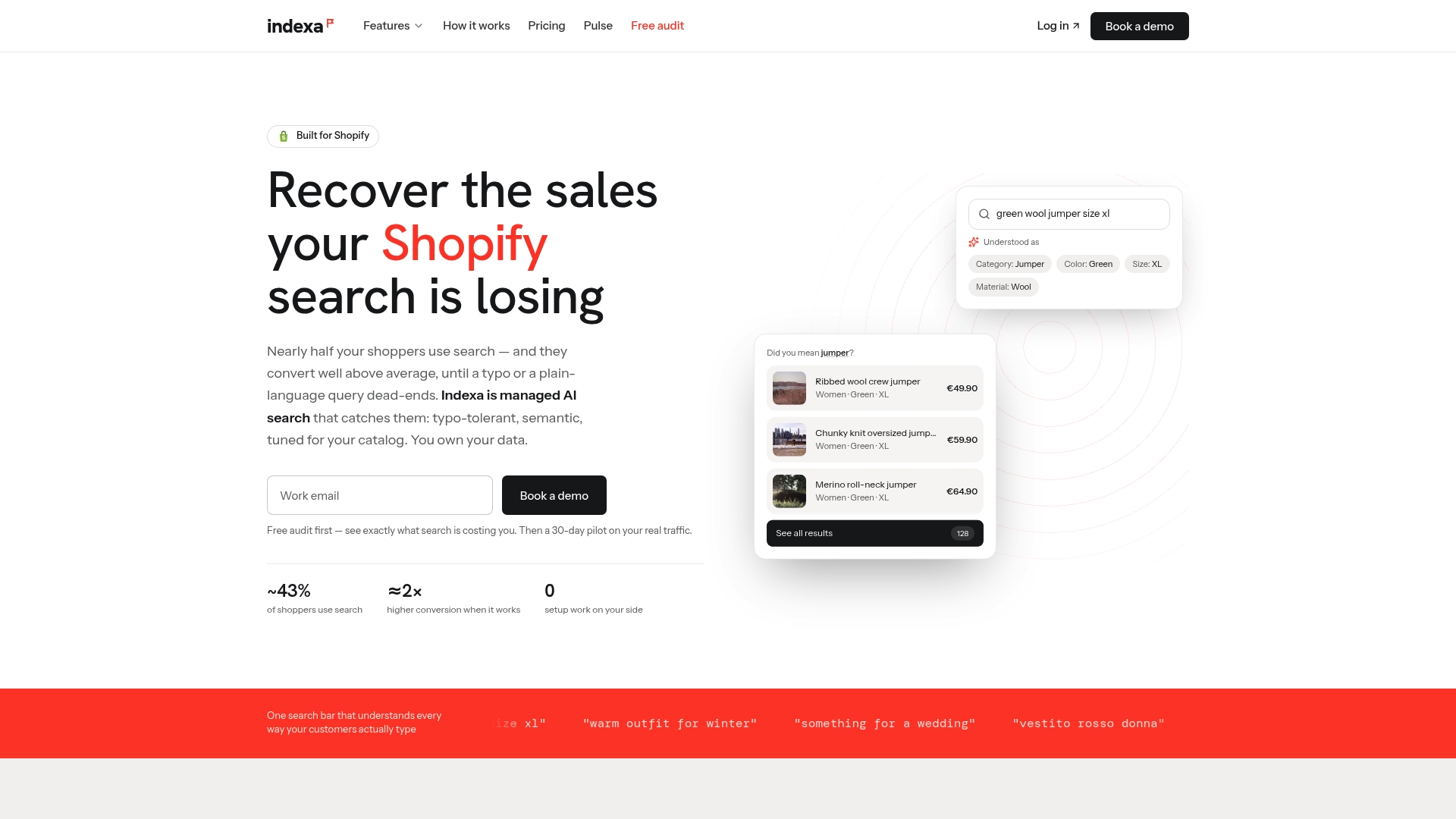
The easiest first step is the free audit, which looks at how your current search handles real queries. When you are ready to see it live, the 30-day pilot lets you try the service on your store, and the pricing page explains the setup fee and flat monthly retainer. You can also see how we compare with the built-in app on our page about going beyond Shopify Search & Discovery.
FAQ
Can I upload a CSV of synonyms to Shopify?
Not through a documented feature. Merchants have requested CSV upload, and the thread records no announced implementation. Prepare your list in a spreadsheet and enter groups manually, starting with the highest-impact ones.
How many synonyms can a Shopify store have?
Shopify’s help documentation sets a maximum of 1,000 synonyms per store, with up to 20 per group and up to 5 words per synonym. Every synonym must be unique across the store.
Do I need synonyms for misspellings?
Usually not. Shopify says common misspellings don’t need synonyms because typo tolerance is built into search. Save your limited slots for real vocabulary differences, like regional names or brand language.
Why do my synonym results look wrong?
The most common cause is grouping terms that are only loosely related. Shopify advises using clear substitutes and avoiding pairs like “men” and “boys.” Also remember that multi-word synonyms match as phrases, so the words must appear in that order in your product data.
Sources
- Shopify Help Center: Modifying search
- Shopify Help Center: Search behavior in your online store
- Shopify.dev: Search and discovery (Storefront API)
- Shopify.dev: Add predictive search to your theme
- Shopify Changelog: Typo tolerance in storefront search
- Shopify Changelog: Customize your headless store with the Search & Discovery app
- Shopify App Store: Search & Discovery
- Shopify Blog: How to optimize your search and discovery experience
- Shopify Community: Feature request, CSV upload for synonyms
- Shopify Developer Community: Synonyms disappeared
- Glaze Digital: How Shopify’s Search and Discovery app works
Recommended
Make discovery work harder.
See what your Shopify search could do better with a free, hands-on audit.
Get your free search audit